> For the complete documentation index, see [llms.txt](https://docs.lumi-ai.com/llms.txt). Markdown versions of documentation pages are available by appending `.md` to page URLs; this page is available as [Markdown](https://docs.lumi-ai.com/product-features/query-builder.md).
# Query Builder
### Overview:
Query Builder is Lumi AI's dedicated SQL development environment, enhanced with Lumi AI as a context-aware Copilot. It provides analysts with a code-first workspace to write, test, and iterate on SQL while leveraging AI assistance grounded in their organization’s Knowledge Base. This enables faster iteration, easier debugging, and more reliable insight generation.
### Key Capabilities/ Benefits :
* **Dedicated SQL Editor** – A full SQL development environment designed for analysts who want direct control over joins, filters, calculations, and query structure.
* **Contextual AI Copilot** – AI assistance that understands your schema, stored definitions, and business context to help extend or improve queries.
* **One-Click Debugging** – Automatically diagnose and resolve SQL errors with contextual suggestions surfaced directly in the editor.
* **Tracked Iterations** – Every query version is preserved, allowing analysts to experiment safely and revert to previous logic when needed.
* **Publishing to Boards** – Share validated queries directly to Boards to make insights visible across teams.
* **Alerts on Trusted Logic** – Configure alerts on queries so teams are automatically notified when important thresholds are reached.
***
## How to Use Query Builder
Step 1: Select the **"Query Builder"** feature on the left hand side of your navigation pane
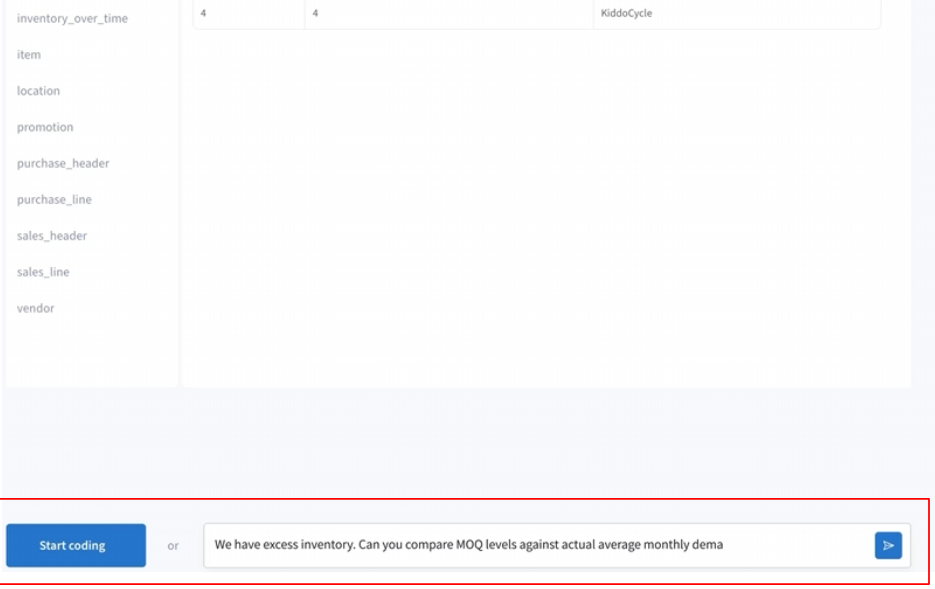
Step 2: Users can either click **"Start Code"** to begin writing SQL manually, or use the AI assistant to automatically generate a baseline query that they can review and modify.
{% hint style="info" %}
Below is an example of the SQL code generated by Lumi's AI CoPilot
{% endhint %}
Step 3: Edit the generated SQL in the SQL Editor to customize the query and further enrich the results displayed in your visualization.
{% hint style="warning" %}
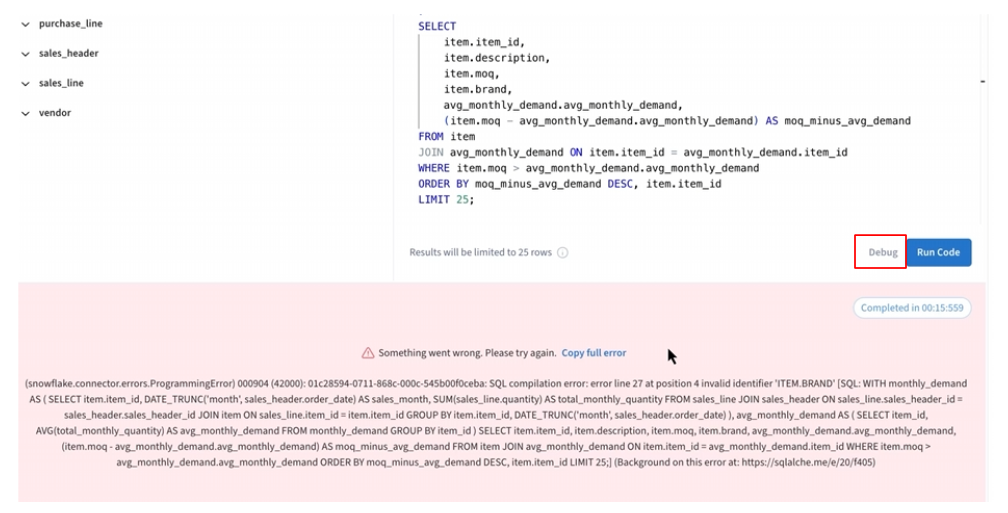
If an error occurs, click **Debug** to automatically diagnose the issue and update your SQL query with the appropriate corrections.
{% endhint %}
Step 4: Every update to your SQL query is automatically saved as a new iteration. Previous versions can be rerun or revisited, making it easier to track changes and maintain a reproduceable audit trail
Step 5: Once complete, you can publish the Board and share the insights with your team.