> For the complete documentation index, see [llms.txt](https://docs.lumi-ai.com/llms.txt). Markdown versions of documentation pages are available by appending `.md` to page URLs; this page is available as [Markdown](https://docs.lumi-ai.com/product-features/chat/file-upload.md).
# File Upload
File Upload lets you attach files directly into a chat so the assistant can use them as additional context when responding to user's queries.
This is especially useful for technical users who want to move quickly by leveraging existing work artifacts (e.g. PDFs, CSV, or text file) to accelerate analysis and decision-making.
## Benefits for Utilizing File Upload
* **Speed to outcome** by providing net-new, high signal context so the assistant can quickly assess impact and generate actionable insights.
* **Leverage existing work** by reusing validated, previously aligned-upon artifacts (e.g., reports, specs, definitions) that are already trusted by technical and management teams.
* **Unlock multi-source synthesis** by combining multiple artifacts to support richer, more complete analysis of real-world technical questions.
## How to Upload a File in Chat
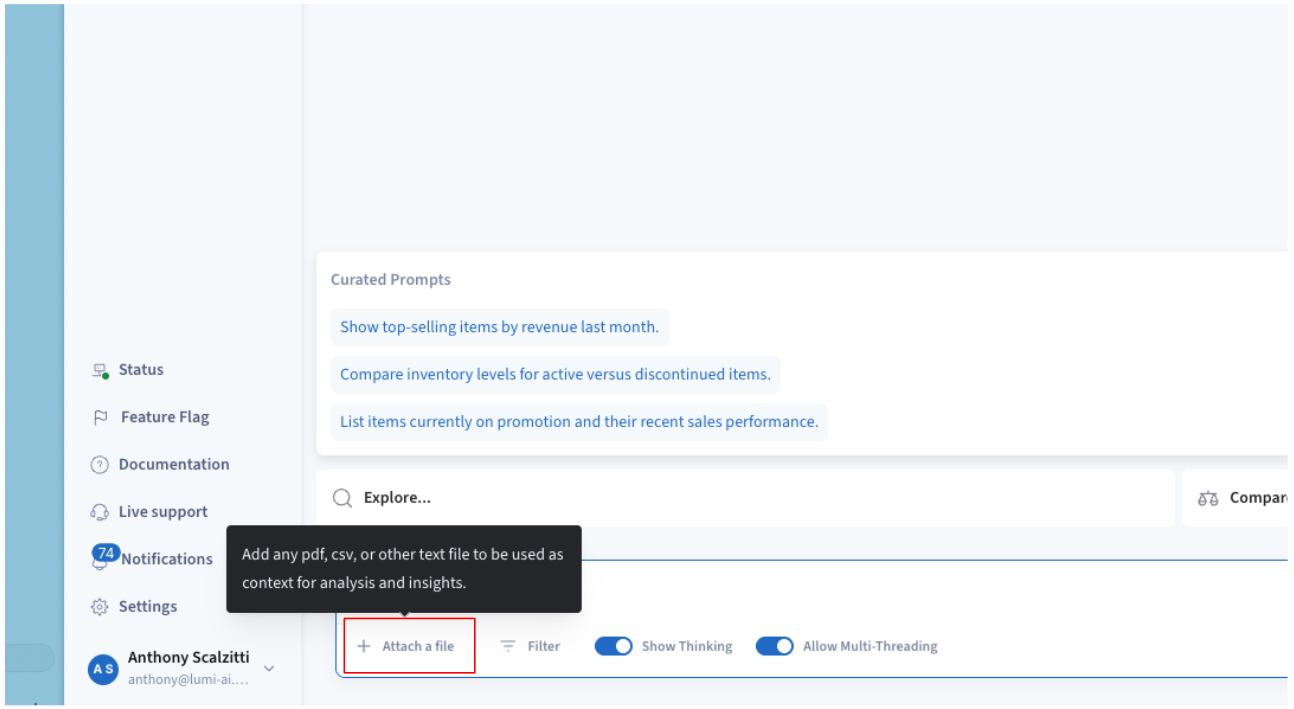
**Step 1:** Open the chat. In the message input area, click **“+ Attach a file”** to upload a file for LumiAI to provide the incremental analysis and insights.
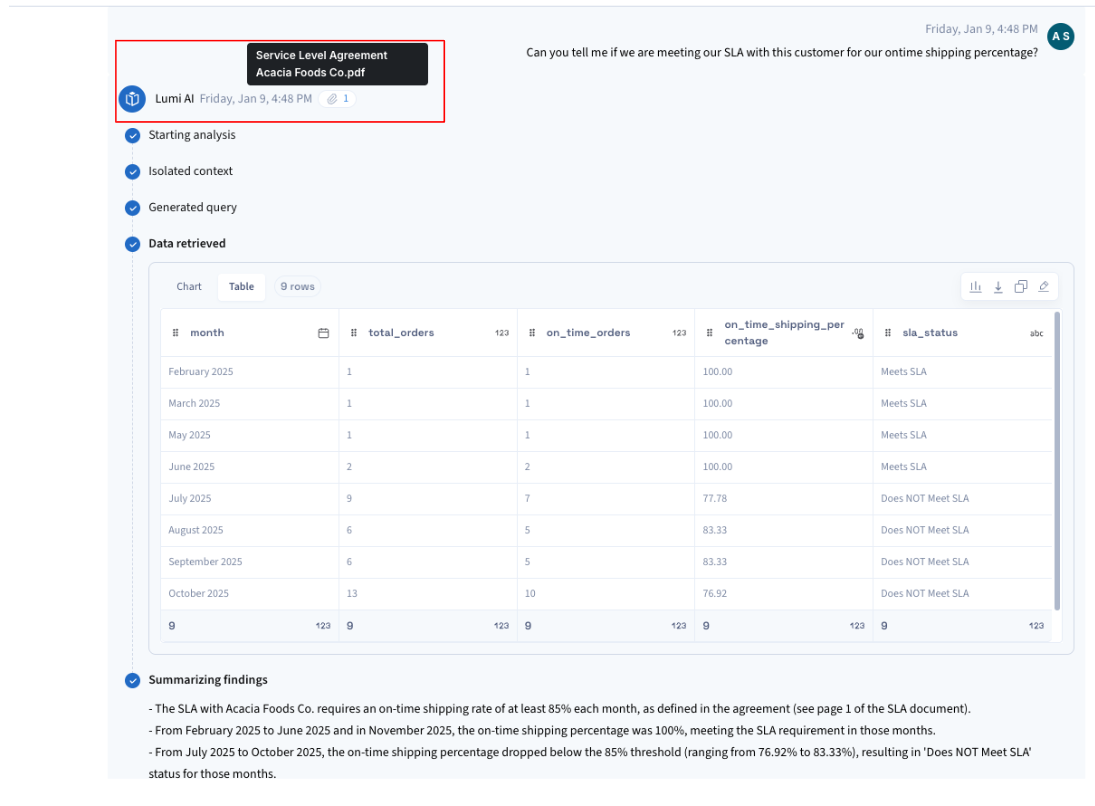
**Step 2:** Confirm that the uploaded file (e.g., Service Level Agreement Acacia Foods Co.pdf) is included in the assistant’s analysis.
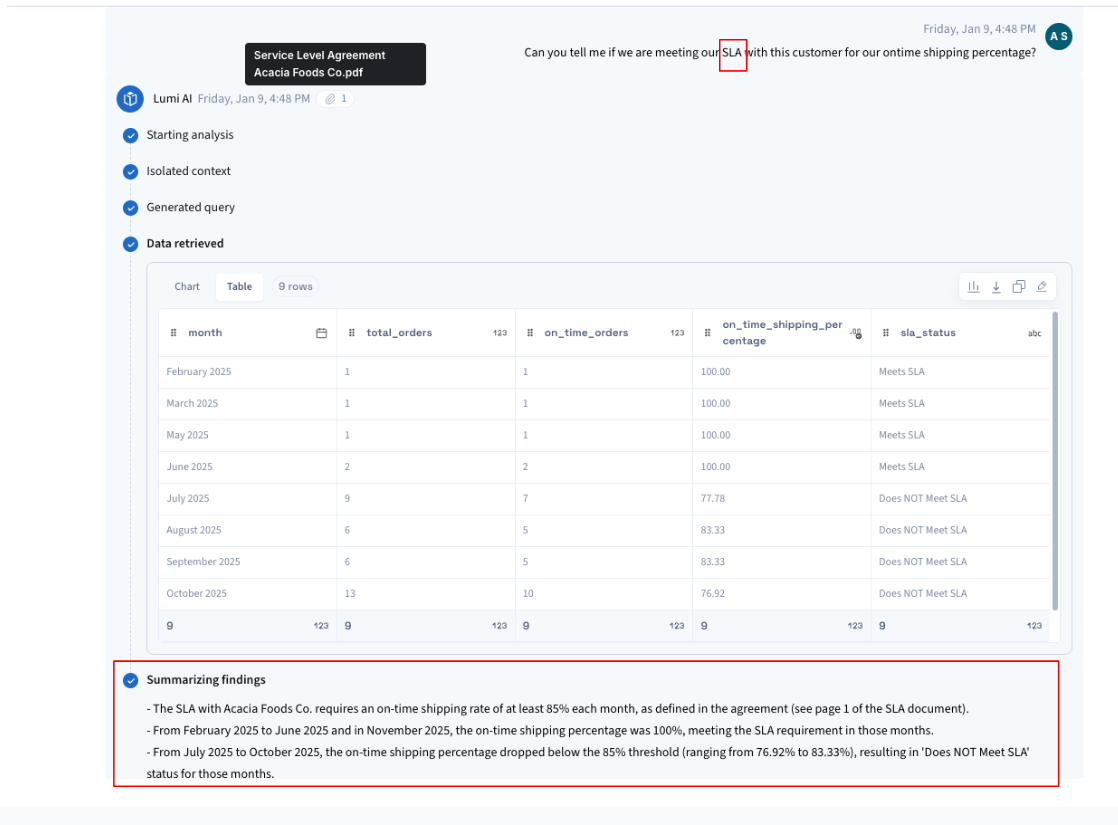
**Step 3:** Reference the uploaded document in your prompt to guide the results.